
For Mac
Every bill, card and payment plan in one private place.
Monthly keeps track of what’s due, what’s paid and what’s left, from rent and utilities to credit card minimums and buy-now-pay-later plans. Everything stays on your Mac, locked with your password.
- No account to make, and no bank logins
- No ads and no tracking
- Encrypted, with Touch ID
Download Monthly
Enter your name and email to download.
Version 1.5.0 · 124 MB · For Macs with Apple silicon (M1 or newer), macOS 13 or later.
Your name and email are only used to keep track of who has Monthly and, now and then, to tell you about updates. They’re never sold or shared.
What’s inside
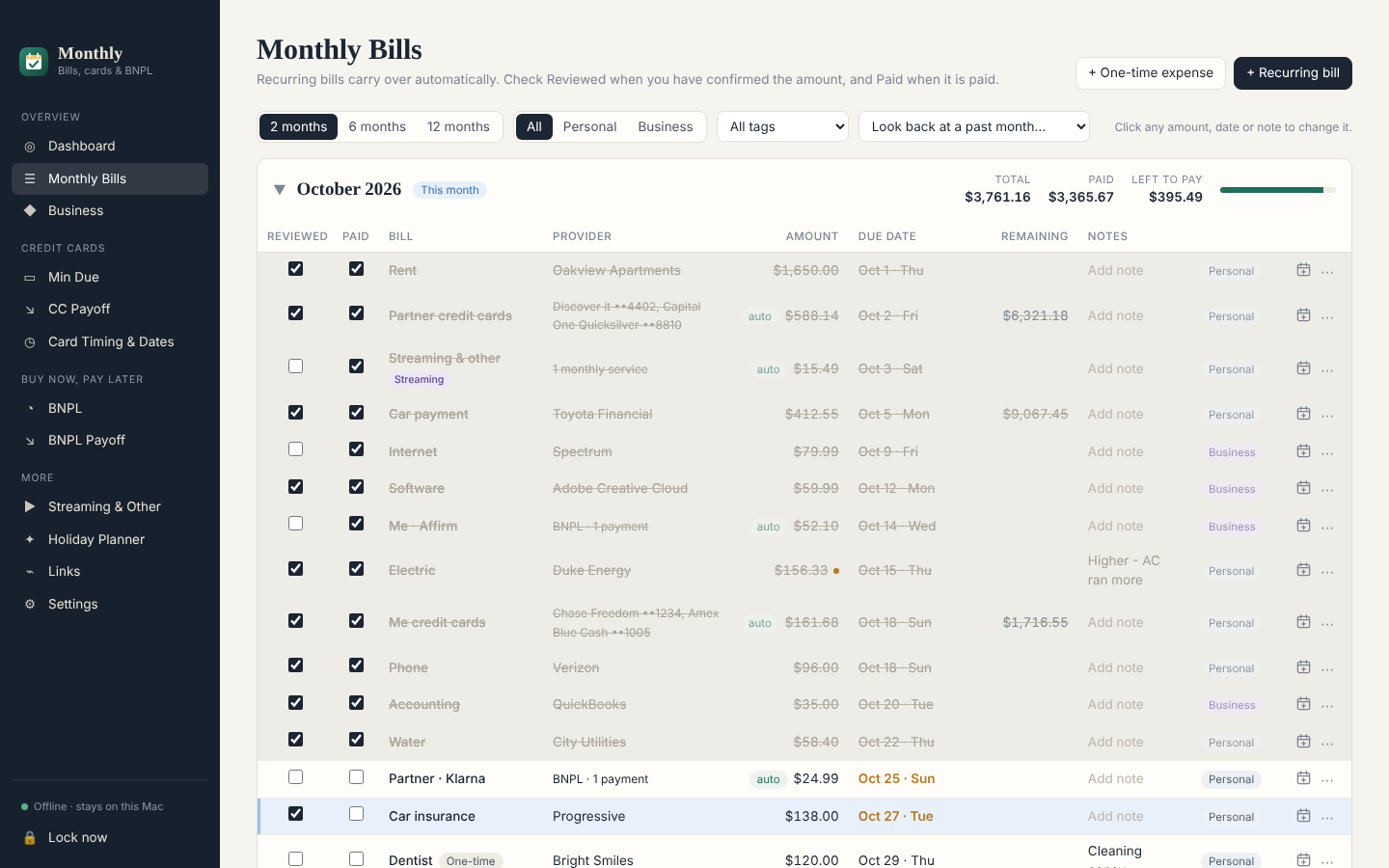
Monthly Bills
See this month and next side by side. Check off Reviewed and Paid as you go, and watch the total left to pay go down. Recurring bills carry over by themselves.
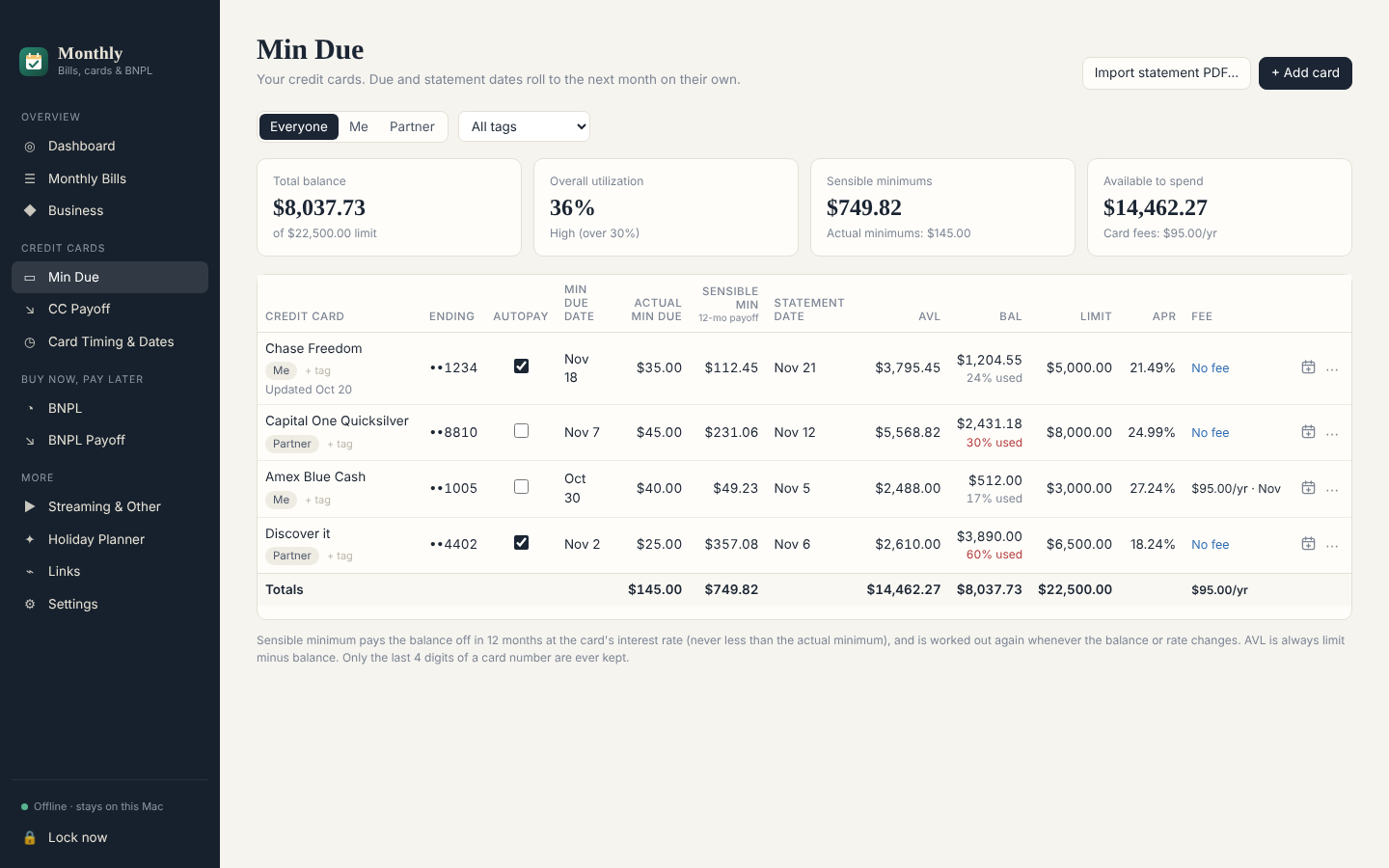
Credit cards
Every card’s minimum, due date, statement date, balance, available credit and APR in one table, with a sensible payment that clears it in 12 months.
Statement import
Pick a card statement PDF and Monthly fills in the numbers. It reads the file right on your Mac. Nothing is uploaded.
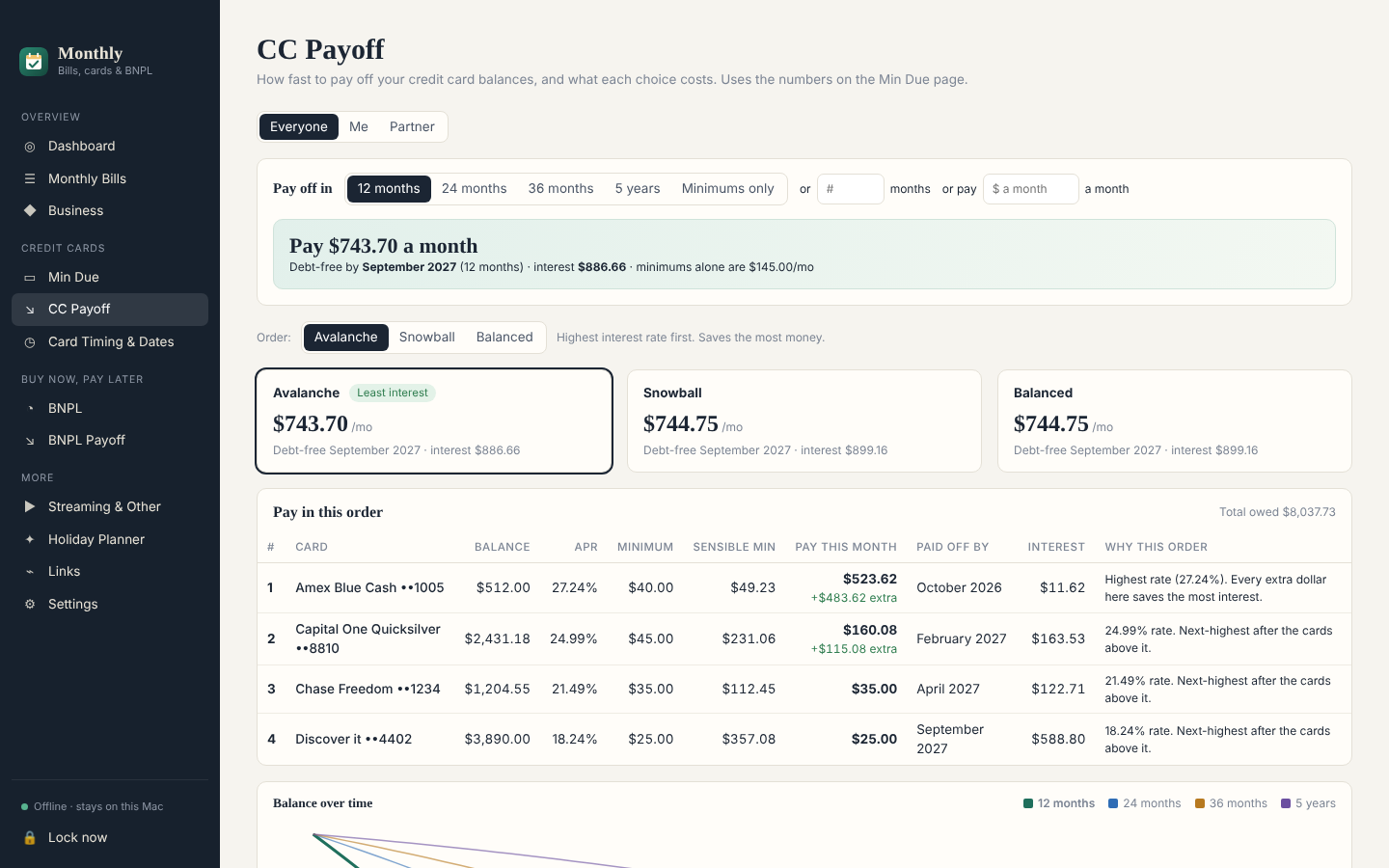
Payoff plans
Snowball or avalanche, in 12, 24 or 36 months, 5 years, or minimums only. See the monthly payment, debt-free date and total interest for each.
Buy now, pay later
Afterpay, Affirm, Klarna and the rest: every payment on its date, grouped by provider, with its own payoff plan.
Streaming & other
Monthly and yearly subscriptions, with yearly renewals showing up in the month they hit.
Card timing
Know which card is best to use today, based on statement dates and how much is available.
Holiday planner
A gift list with a budget, so December doesn’t sneak up on you.
Tags & people
Tag anything (Auto, Utilities, Pets…) and track whose card or bill it is, with filters on every page.
Google Calendar
Add one bill to your calendar with a click. It opens Google Calendar’s “new event” page, already filled in.
Installing
- Find Monthly in your Downloads folder. If you see a .zip file instead, double-click it to get Monthly.
- Drag Monthly into Applications. Then open it from there.
- Let your Mac open it. The first time, macOS says it can’t check the app because it isn’t from the App Store. Click Done. Then go to System Settings › Privacy & Security, scroll down, click Open Anyway next to Monthly, and enter your Mac password. You only do this once.
- Create your password and save your recovery code. There’s no online reset, so keep the code somewhere safe.
Privacy
The app
- Everything you enter is encrypted with your password and saved only on your Mac.
- Monthly doesn’t go online on its own. It only goes online when you click Check for updates, and then only to this website. It sends nothing about you or your data.
- Only the last 4 digits of a card number are kept.
- It locks itself when you step away, and keeps encrypted daily backups.
This website
- Your name and email are saved when you download, so we know who has Monthly and can tell you about updates.
- They’re never sold or shared, and there are no ads or trackers on this site.
- Want to be removed? Just ask the person who shared this page with you.
Questions
Why does my Mac warn me when I open it?
Monthly isn’t sold through the App Store, so macOS asks you to approve it once. Follow step 3 under Installing. After that it opens normally.
Does it connect to my bank?
No. You type in your bills and cards, or import a card statement PDF you downloaded. Monthly never logs in to anything.
How do I get updates?
In Monthly, go to Settings › Updates and click Check for updates. If there’s a new version, click Download and install, then restart. Your data stays as it is.
What if I forget my password?
Use the recovery code you saved when you set up Monthly. Without the password or the code, nobody can open your data, not even the person who made the app.
Can I move it to a new Mac?
Yes. In Settings › Backups, click Export backup, copy the file to the new Mac, install Monthly there, then Restore from backup using the same password.
Does it work on an Intel Mac or Windows?
Not yet. Right now it’s for Macs with Apple silicon (M1 or newer). Intel Mac and Windows versions are coming soon. Not sure which Mac you have? Click the Apple menu › About This Mac. If it says “Chip: Apple M…”, you’re set.